 OfficeOne PowerShow
Multi-monitor Media Player
With Multi-monitor Media Player, PowerShow enables you to see video/movie on a
monitor while allowing you to control it from another monitor. OfficeOne
PowerShow creates a presentation in which the video/movie occupies half of
the slide and the controls occupy the other half. The slide has twice the
normal width. This makes it possible for you to span the slide show across
two side-by-side monitors using OfficeOne PowerShow.
Setting up multi-monitor media player involves two steps: (1) Creating a
multi-monitor media player presentation. (2) Spanning the presentation over
two side-by-side monitors.
Following are step-by-step instructions to set this up:
- Creating the multi-monitor media player presentation:
A multi-monitor media player presentation has twice the normal width to allow it to span 2 monitors positioned side-by-side to each other. Create the presentation as follows:- Select Slide Show tab, Multi-monitor Media Player button.
- Select the
 button. Locate
and select the movie file that you wish to play.
button. Locate
and select the movie file that you wish to play.
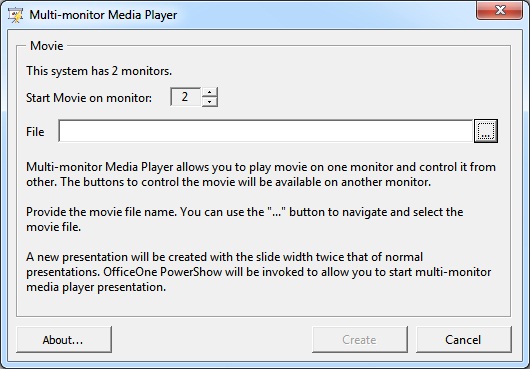
- Click the Create button to create a multi-monitor media player presentation.
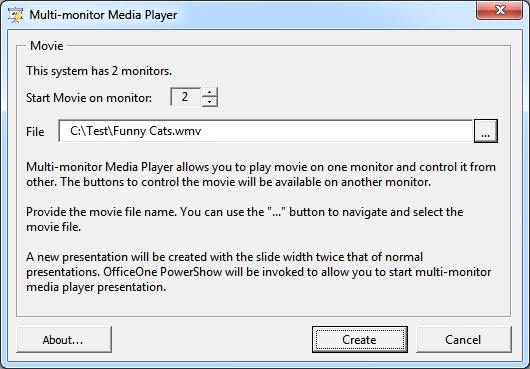
- So far, we have created the multi-monitor media player presentation. The presentation file called MultiMonitorMediaPlayer.ppt is created in your My Documents folder.
- OfficeOne PowerShow will now show the PowerShow Session Settings
dialog box with proper settings already filled in. You can use the
Save Settings... button to store these Session Settings for later
use.
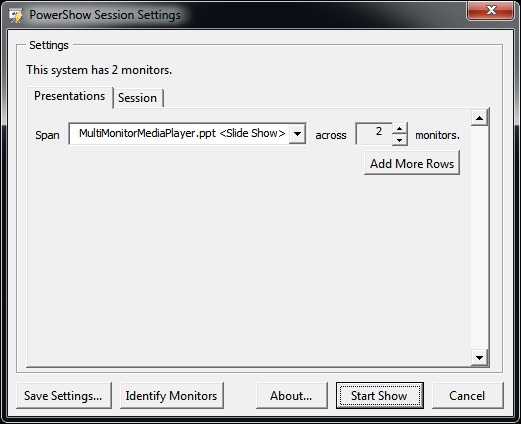
- Click Start Show button to start showing multi-monitor media player slide show.