 OfficeOne PowerShow
Synchronous Shows
The Synchronous Shows feature of PowerShow
enables slide shows to run on multiple monitors synchronized with each
other. This allows you to display different slide shows on different monitors
simultaneously synchronized with each other. When used with Ticker Show
feature, this allows you to show different slide shows on the same monitor
synchronized with each other. It also allows for the same content to be presented
in multiple languages at the same time. The Synchronous Shows feature works
as follows:
- You need to elect a presentation as the Master presentation and other presentations as Followers of the master presentation.
- When the master slide show changes slides or does animation builds, the other slide shows follow. The master slide show can have timed animations and slide transitions. The follower slide shows should to be configured to advance manually.
To setup the Master-Follower relationship, use the following steps:
- Open your presentations in Microsoft PowerPoint.
- Select Slide Show | Prepare Sync Show item.
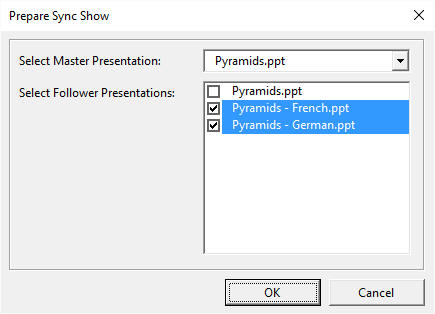
- Select the master presentation from the drop down box.
- In the second list box, select the follower slide shows that should be synchronized with the master slide show.
- Click OK.
- Save the master and follower presentations.
- This would create a Synchronous Show group with the selected master and the follower slide shows forming the group. The follower slide shows should be setup to advance manually under PowerShow control.
- You can repeat steps 1 to 4 for creating other groups. A presentation can be part of only one Synchronous Show group.
When you are done creating the Synchronous Show groups, you can:
- Start the PowerShow session as you would do normally through Slide Show | Power Show item. PowerShow will recognize these groups and would keep the slide shows in sync with each other.
- Start the TickerShow session as you would do normally. The TickerShow feature will recognize these groups and would keep the slide shows on the same monitor in sync with each other.
Some points to note:
- The Follower slide shows should not have timed/automatic animation builds. The Master slide show can have timed animation builds. The Follower slide shows can have animation builds but their timings are controlled through the Master slide show navigations.
-
The Follower slide shows should not have timed/automatic transitions. The Master slide show can have timed transitions. The Follower slide shows can have slide transitions but their timings are controlled through the Master slide show navigations.To turn OFF timed animations and transitions in coordinated slide shows, perform the following steps in each follower slide show:
- Select Slide Show | Set Up Show... menu item.
- Select Manually in Advance slides box.
- Click OK.
- Interactive animation sequences are not supported.
Related Tips:
- How do I display different slides from same presentation on different monitors?
- How do I synchronize slide shows across different machines?
- How do I use Ticker Show with Synchronous Shows?
- How can I see English and French slide shows side-by-side on one projector?
- How can I see English presentation on my laptop while projecting the same slide show in a different language?
- How do I display multiple slide shows synchronous with each other using Matrox DualHead2Go?
- How do I display multiple slide shows synchronous with each other using Matrox TripleHead2Go?