 OfficeOne PowerShow
See formatted notes on your laptop while the audience sees the slide show
See the notes on your laptop while the audience sees the slide show
Many times you would want to use your laptop as a prompter while the
audience sees the slide show on the projector (beamer). You would want
to display the speaker notes on the laptop when the slide show is
running. The PowerShow add-in offers you to
view formatted notes for the shows on a different monitor. The notes are
kept synchronized with the slide that is being projected to the
audience.
There are 2 methods to display notes on your monitor while displaying
slide show through the projector.
Method 1
This method gets you full-screen formatted notes on your monitor and
full-screen slide show on the projector. The following are the steps:
- Open your presentation in Microsoft PowerPoint.
- Select Slide Show tab, clear the Use Presenter View box.
- Select Slide Show | Power Show item.
- On the Presentations tab, set up the configuration as follows:
- Select presentation <Notes> in the first row and 1 monitor.
- Select your presentation <Slide Show> in the second row and 1 monitor.
- Click Start Show button.
You would now see PowerShow's formatted notes view on the primary
monitor and the slide show on the second monitor. PowerShow's formatted
notes view allows you to zoom in and zoom out the notes to allow you to
comfortably look at the notes from a distance. This is helpful if you
are standing at a distance from your podium/lecturn and want to look at
your notes for reference.
Method 2
This method allows you to use PowerPoint's native notes page for
displaying notes and keeping the notes page in-sync with the slide show.
An advantage of this method is that it allows you to display shapes and
images that you insert on the notes page.
The notes page is shown on the primary monitor and the slide show is
shown on the secondary monitor. The following are the steps:
- Open your presentation in Microsoft PowerPoint.
- Select View | Notes Page item to view the
notes page. You will now see the slide and the notes corresponding to it.
Normally, the notes page is in portrait mode. You might want to change it to
landscape mode by following these steps:
PowerPoint 2019, 2016, 2013 PowerPoint 2010, 2007 - Select Design tab | Slide Size drop-down box.
- Select Custom Slide Size... menu item.
- Select Landscape option in the Notes, handouts & outline group.
- Click OK button.
- Select Slide Show tab, clear the Use Presenter View box.
- Select Design tab | Page Setup button.
- Select Landscape option in the Notes, handouts & outline group.
- Click OK button.
- Select Slide Show tab, clear the Use Presenter View box.
- Select Slide Show | Power Show item.
- On the Presentations tab, set up the configuration as follows:
- Select <Skip Monitor> and 1 monitor.
- Select your presentation <Slide Show> in the second row and 1 monitor.
- On the Session tab, do the following:
- Place a check against Slide design view follows slide show box.
- Clear Show Slide Thumbnail box.
- Clear Show Next Slide Thumbnail box.
- Clear Full Screen Session Controller box.
- Clear Slide show follows slide sorter view box. The dialog
box should look like the following:
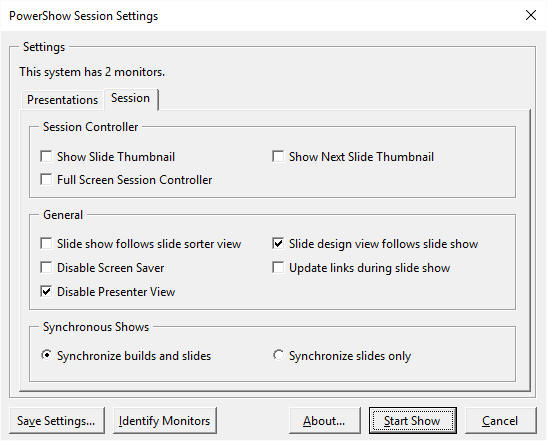
- Click Start Show button.
This configuration will enable you to see notes on the primary monitor
through the normal PowerPoint views and see the slide show on the secondary
monitor.
The PowerShow SlideShow Navigator toolbar is created in
Add-Ins tab when PowerShow Session starts. The PowerShow SlideShow Navigator toolbar allows you to
control the slide show running through the projector.
The landscape setup for notes page also changes the
configuration for handouts. If this is not desirable, then you can
replace the step 2 above with the following step 2:
- Select View | Normal menu item to view the
notes page. Resize the notes pane at the bottom of the slide to ensure that
the slide notes are seen completely and clearly. You might want to magnify
the notes by following these steps:
- Click on the notes in the notes pane.
- Select View | Zoom... menu item.
- Select a higher value to magnify the notes.
- Click OK button.
The rest of the steps remain the same.