 OfficeOne PowerShow
Display 2 slides side-by-side on a monitor as a booklet
PowerShow supports a feature called Ticker
Show that allows you to show multiple slide shows on the same
monitor. We will use this feature to show 2 slides side-by-side on the
same monitor. Assume that we have a left presentation that
represents the left side of the booklet and right presentation
that represents the right side of the booklet. Since we want to show 2
slides from the same presentation side-by-side to form a booklet, we
would create a duplicate presentation and make it trail the original
presentation by a slide. The steps are as follows:
- Assume that we have a presentation named Right.pptx. We
create a duplicate of this presentation and call it Left.pptx:
- Open Right.pptx in Microsoft PowerPoint.
- Save the presentation as Left.pptx.
- Open Left.pptx as well as Right.pptx in Microsoft PowerPoint.
- In Left.pptx, insert a new blank slide at the beginning of the presentation.
- Setup Right.pptx to follow Left.pptx as follows:
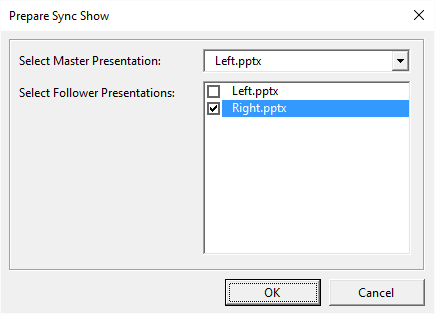
- Select Slide Show | Prepare Sync Show item.
- Select Left.pptx as the Master presentation and place a check against
Right.pptx as the Follower presentation:
- Click OK button.
- Download and store the BookletLayout.ppt in the same folder as Left.ppt and Right.ppt. This layout configures Ticker Show to start the Left.ppt and Right.ppt side-by-side. Open BookletLayout.ppt in Microsoft PowerPoint.
- Start Ticker Show to show the Left.ppt and Right.ppt side-by-side:
- Select Slide Show | Ticker Show item.
- Select BookletLayout.ppt as TickerShow Layout Presentation.
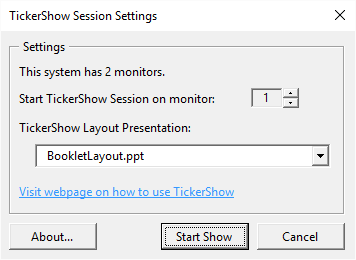
- Click the Start Show button.
The sample files to demonstrate the technique described here are
available for download here .