 OfficeOne PowerShow
See English presentation on my laptop while projecting the same
slide show in a different language
Many times you would want to see the presentation on your laptop in one language while projecting
the slide show in a different language. The
PowerShow add-in offers you to do this using its
Synchronous Shows feature
The set up involves creating different presentations for different languages.
The following configuration steps enable you to set this up with PowerShow with
(say) German slide show on the secondary monitor and (say) English PowerPoint
presentation on the primary monitor (usually the laptop):
- Open English and German presentations. Lets called them Pyramids.ppt and
Pyramids - German.ppt for this tip:
- The presentation that will be projected is called Master presentation. For this tip, Pyramids - German.ppt is the master presentation.
- The presentation that will follow the master presentation on the laptop is called the Follower presentation. For this tip, Pyramids.ppt is the follower presentation.
- Create a SyncGroup with these two presentations:
- Select Slide Show | Prepare Sync Show item.
- Select the Pyramids - German.ppt in the master presentation from the drop down box.
- In the second list box, select Pyramids.ppt.
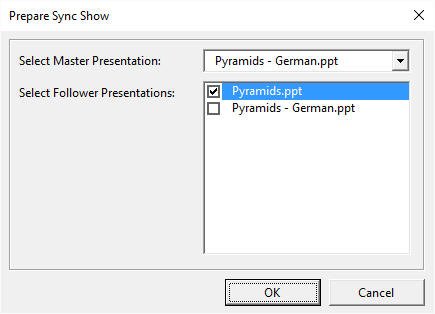
- Click OK.
- Select Slide Show | Power Show item.
- On the Presentations tab, set up the configuration as follows:
- Select <Skip Monitor> and 1 monitor.
- Select your Pyramids - German <Slide Show> in the second row and 1 monitor.
- On the Session tab, do the following:
- Place a check against Slide design view follows slide show box.
- Clear Show Slide Thumbnail box.
- Clear Show Next Slide Thumbnail box.
- Clear Full Screen Session Controller box.
- Clear Slide show follows slide sorter view box. The dialog
box should look like the following:
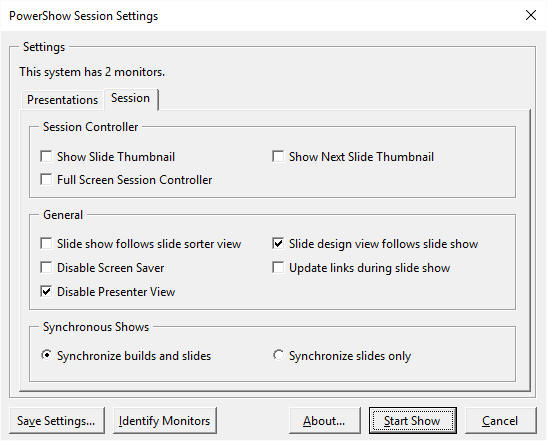
- Click Start Show button.
This configuration will enable you to see English presentation on your
primary monitor through the normal PowerPoint views and see the German slide
show on the secondary monitor.