 OfficeOne PowerShow
See English and French slide shows side-by-side on one projector
Consider the scenarios where we have a presentation in English (say,
English.ppt) and the same content in French (in French.ppt). We want to
show both the slide shows through 1 projector where the slide shows are
placed side-by-side. The projector is configured as second display on
the laptop. When we navigate the English slide show, the French slide
show should navigate accordingly.
The set up involves 3 main steps:
- Create different presentations for different languages such that their combined slide width and height fit within one monitor. In our case, we would create English.ppt and French.ppt with a page setup of half the normal page width. We will not change the page height. It is better to set the page width before creating the content of the presentations.
- Inform PowerShow that English.ppt and French.ppt need to be synchronized such that when user navigates English.ppt, PowerShow should navigate French.ppt accordingly.
- Start Ticker Show with English.ppt occupying left-half of the second monitor and French.ppt occupying the remaining right-half of the second monitor.
These 3 main steps are explained in detail in the following sections:
Step 1
To change the page setup, follow these steps:
| PowerPoint 2019, 2016, 2013 | PowerPoint 2010, 2007 |
|---|---|
|
|
Step 2
The following steps enable you to set up English.ppt as
a coordinator slide show and French.ppt as the follower slide show:
- Open English.ppt and French.ppt presentations.
- Create a SyncGroup with these two presentations:
- Select Slide Show | Prepare Sync Show item.
- Select the English.ppt in the coordinator presentation from the drop down box.
- In the second list box, select French.ppt.
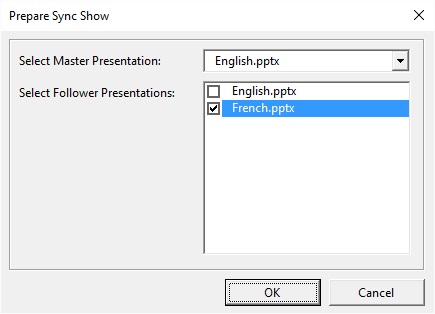
- Click OK.
- Save English.ppt and French.ppt presentations.
Step 3
Creating the TickerShow layout that displays
English.ppt on the left-half and French.ppt on the right-half of the
monitor. Download such a layout file from here.
With the above 3 steps done, we are now all set to start using Ticker
Show feature of PowerShow to show English.ppt and French.ppt
side-by-side on second monitor. Do the following:
- Open layout_english-french-50-50.ppt that we downloaded in step 3 above.
- Select Slide Show | Ticker Show... menu item.
- Select monitor 2 and layout_english-french-50-50.ppt as the
TickerShow Layout Presentation.
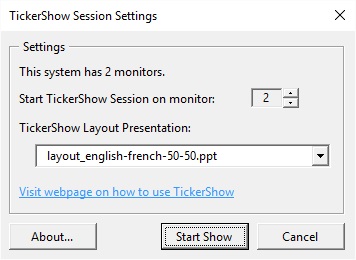
- Click Start Show button.
This configuration setup will enable you to see English presentation on the
left of French presentation on second monitor. When you navigate English slide
show, PowerShow will navigate French slide show accordingly.